Team folders are here
Add your S3-compatible bucket as a folder accessible by your whole team; set up permissions and manage access to your fonts.
Lots of teams asked for a way to sync fonts, but not only to simply share them, but to also be able to manage access per team member or department and restrict font usage. With font licenses we already can do the last part, and now it is time to do the first part as well. So, starting today, anyone on the Awesome plan can create user groups, add S3 buckets as folders and manage group access to these folders.
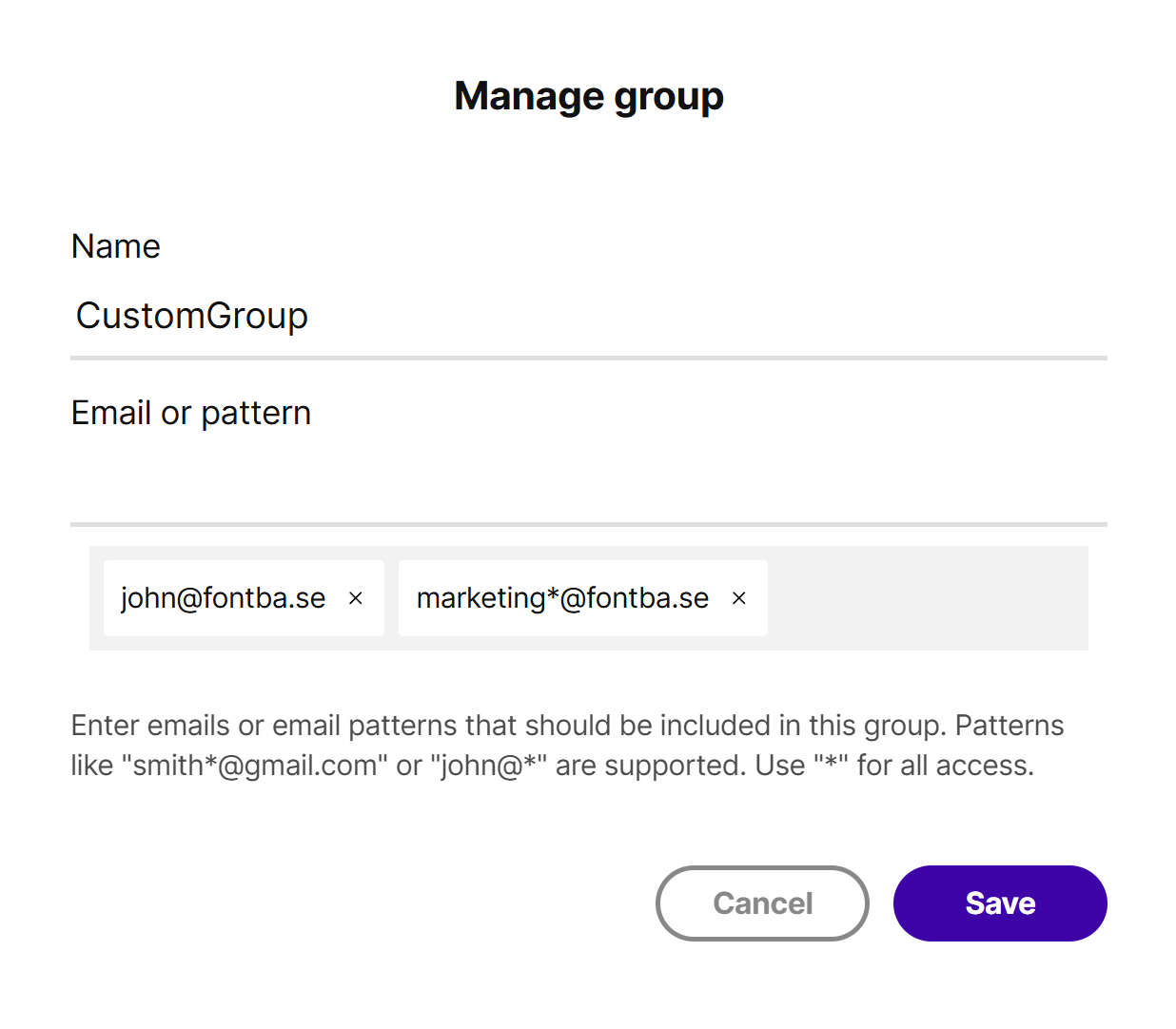
Member groups are a way to organize your team members based on the email or email pattern. A group can contain multiple emails like john@company.com, jane@yourteam.io; or it can contain patterns, like *@company.com (matches anyone with an email from that domain), john*@team.io (matches john.smith@team.io, john.doe@team.io, etc.); or it can contain a combination of both. Team admins can create multiple groups and change them at any time in the team settings. You can read more about managing groups over here.
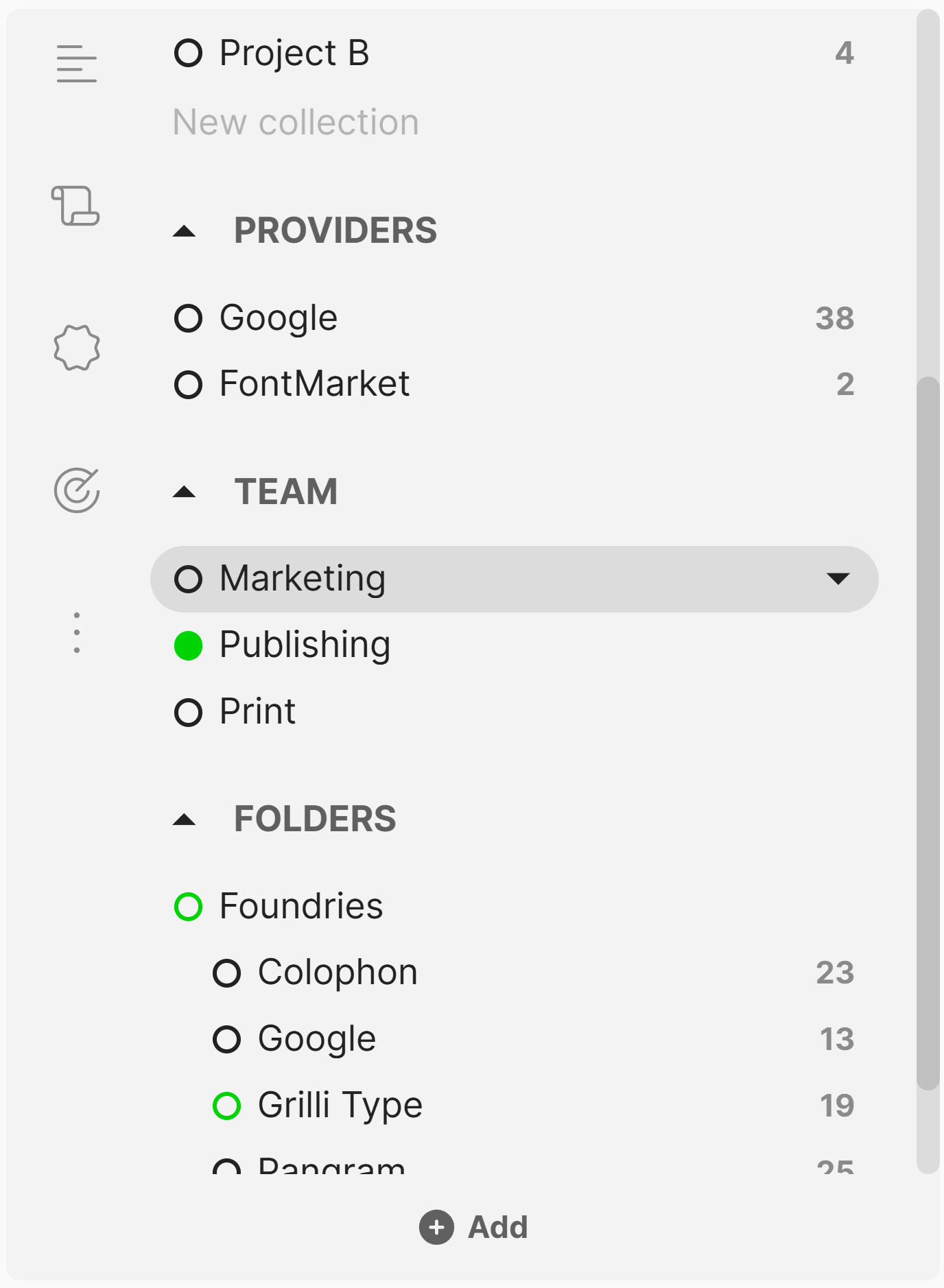
Team folders are a way to connect S3 compatible buckets to your FontBase team account. Once connected, everyone inside your team will see a new section inside FontBase app called "Team", where are the fonts from the connected buckets will be available for view and activation. The fonts are not downloaded locally, they stay online, and only loaded once activated, so basically they function in the same way as a Provider.
By default everyone inside your team will have access to every connected folder, but you can restrict that access to specific user groups. So one group can have access to "Department A" folder, and another group can have access to "Department B" and "Department A" folders, a third group can have access to all of them, and so on.
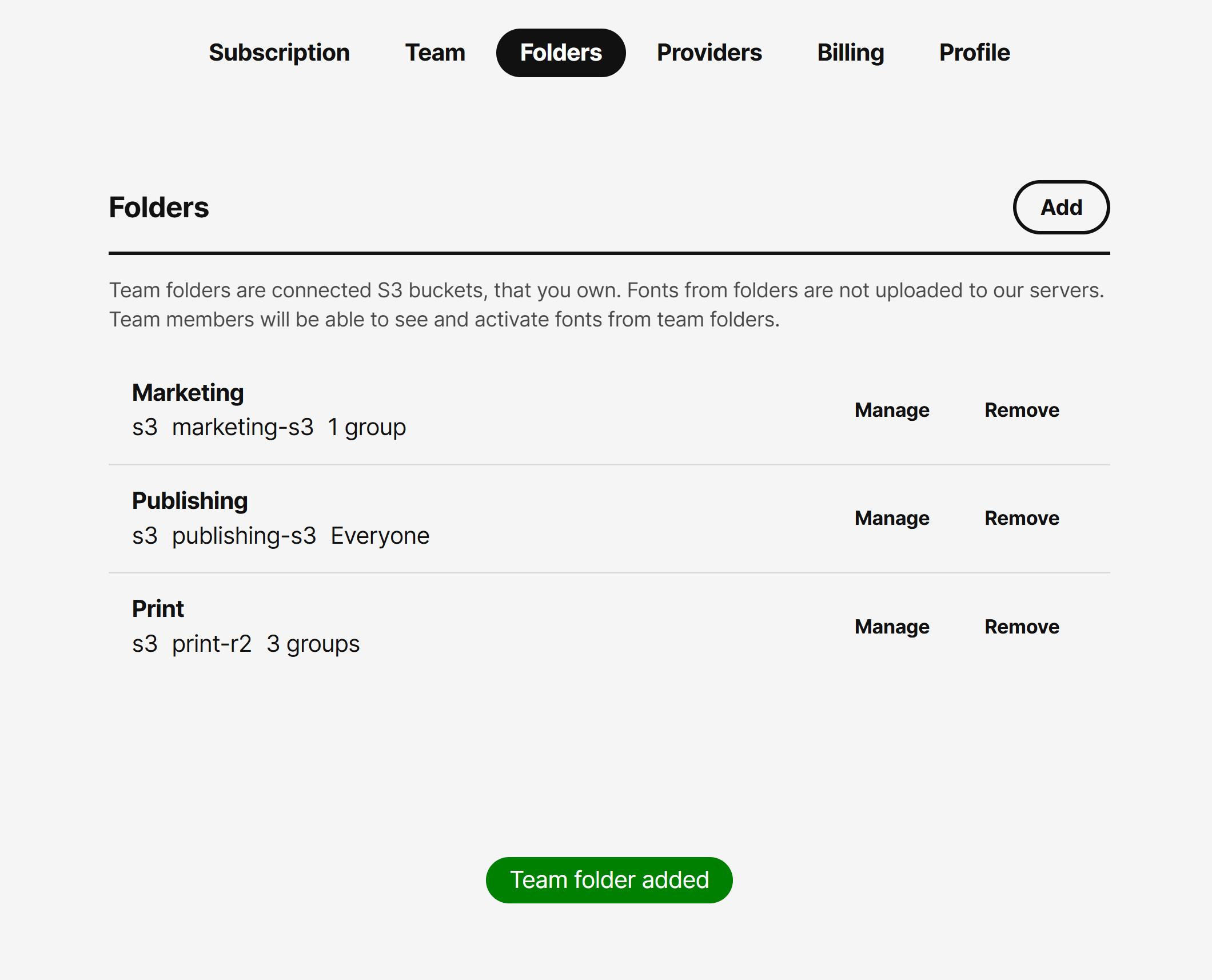
You can add and remove groups and folders at any time and the changes will be displayed for all team members once they restart the app. If a team member is removed from a group that granted them access to a specific folder, they will no longer see the fonts from that folder inside FontBase app, and wont be able to view or activate them anymore.
How to add a team folder? You can do that inside the Folders section of your FontBase account at web.fontba.se. To add a team folder, you will need to have an account on any S3 compatible service. That includes Amazon S3, Cloudflare R2, Backblaze B2, Wasabi, DigitalOcean Spaces, your own self-hosted server, and many others. When creating a team folder, you'll need to provide the bucket name, region, access key id, and secret access key. We only require read-only access, write access is never required. A more detailed guide is available here.
How to add a group to a folder? Once you have created some team member groups, and a team folder, you can click Manage on the folder menu. A window will appear where you can freely add or remove groups. Once you click Save, the changes will apply immediately across your team.
To remove a team folder, just click Remove on the folder menu, and the folder will be immediately removed from your account. The change is irreversible, so you will need to re-add the folder if you remove it.
Team folders are never uploaded or stored on FontBase servers, they always stay inside your S3 bucket. When accessed by a team member, we use your credentials to generate a secure temporary link that is then provided to the team member. Each link is valid for 48 hours only and after that period the fonts can not be accessed anymore. We refresh the links each time the team member launches the app, so they never face the limitations of the 48 hours, as long as they are using the app.
So yeah, there you go, you can now sync your font files in so many different ways! Cloud drives like Dropbox or Google Drive were already supported for a long time. You can always move your FontBase root to your local server network location and sync it that way. You can connect a remote server as a mounted drive via SMB and sync it that way too. You can use services like Syncthing to sync your root folder as well. And now you can also use your S3 buckets! Hope you like your options, and see you next time!
We also have a newsletter
Subscribe and be the first one to receive all the hot and fresh news!